

Are your AI investments paying off? (Sponsored)

AI budgets are under the microscope and most engineering teams only cite time savings from code generation when asked if it’s working.
The real impact is in production, where teams spend 70% of engineering time investigating incidents, jumping between tools, and losing time that could go toward shipping product.
That operational load only grows with every line of AI-generated code that hits prod.
Learn how engineering teams at Coinbase, Zscaler, and Salesforce are seeing AI impact across the full engineering lifecycle. Plus, get a practical worksheet for modeling AI ROI with your own operational data.
Turning a design into working code is one of the most common tasks in frontend development, and one of the hardest to automate. The design lives in Figma. The code lives in a repository. Bridging the two has traditionally required a developer to manually interpret layouts, colors, spacing, and component structure from a visual reference. AI coding agents promise to close that gap, but the naive approaches fall short in important ways.
Figma launched its MCP server in June 2025 to bring design context into code. This year, they released two new workflows: the ability to generate designs from coding tools like Claude Code and Codex, and the ability for agents to write directly to Figma design.
We spoke with Emil Sjölander, Aditya Muttur, and Shannon Toliver from the Figma team behind these releases to understand the details and engineering challenges. This article covers how Figma’s design-to-code and code-to-design workflows actually work, starting with why the obvious approaches fail, how MCP solves them, and the engineering challenges that remain.
The Gap Between Design and Code
Before diving into how Figma’s MCP server works, it helps to understand the approaches that came before it, and why each one hits a wall. There are two natural ways to give an LLM access to a design: show it a picture, or hand it the raw data. Both have fundamental limitations that motivated a different approach.
Approach 1: Screenshot the design
The most obvious way to turn a design into code with an LLM is to take a screenshot of your Figma file and paste it into a coding agent. The LLM sees the image, interprets the layout, and generates code.
This works for simple UIs. But it breaks down for anything complex. The LLM has to guess values based on pixels. It doesn’t know the exact color or that the spacing between cards is 24px, not 20px. The output may look close, but not identical.
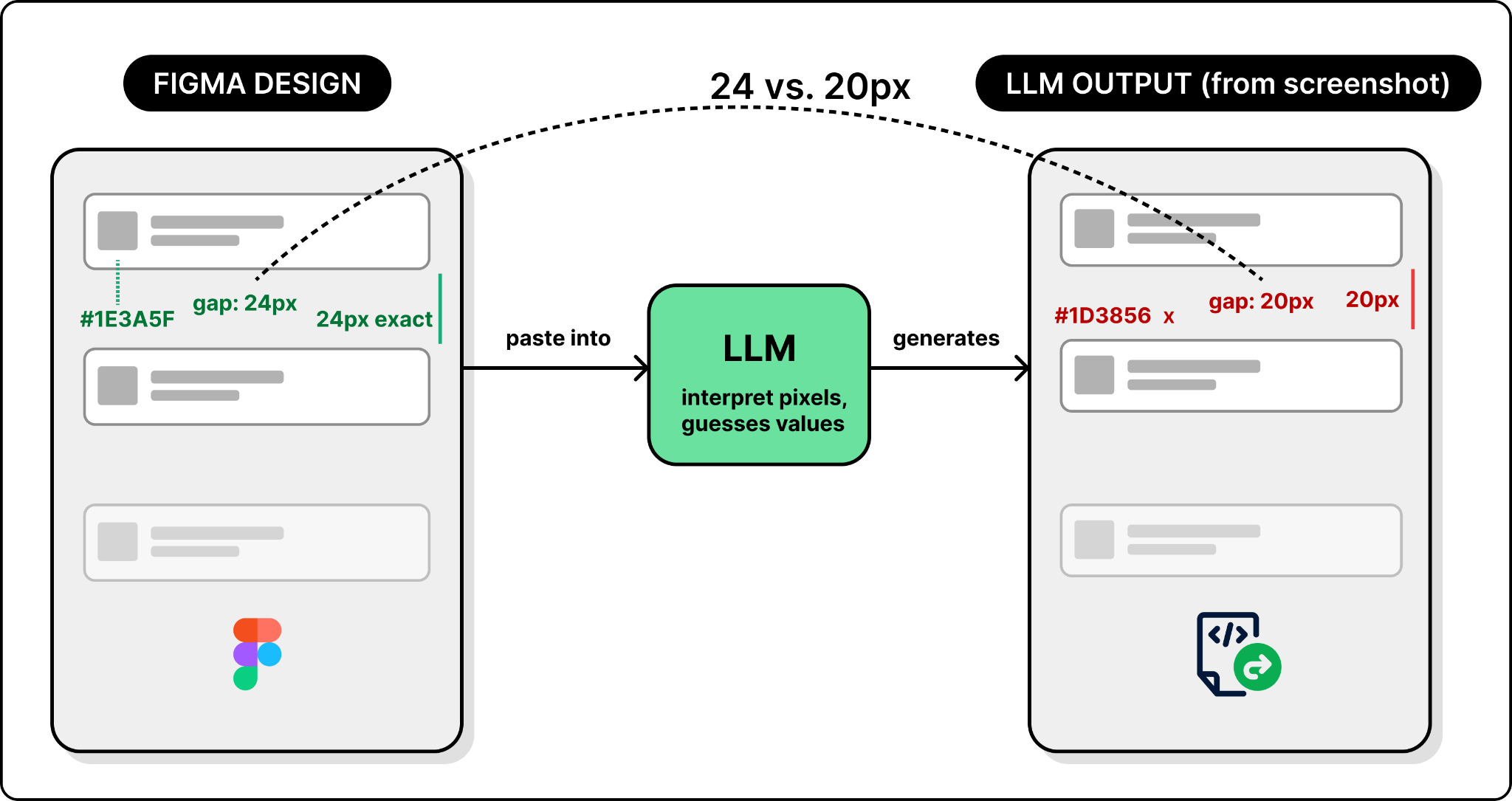
So screenshots give the LLM a visual reference but no precise values. The next natural step is to go in the opposite direction: give it all the data.
Approach 2: Get Design JSON via Figma’s API
Figma exposes a REST API that returns a file’s entire structure as JSON. Every node, property, and style is included. Now the LLM has real data instead of pixels.
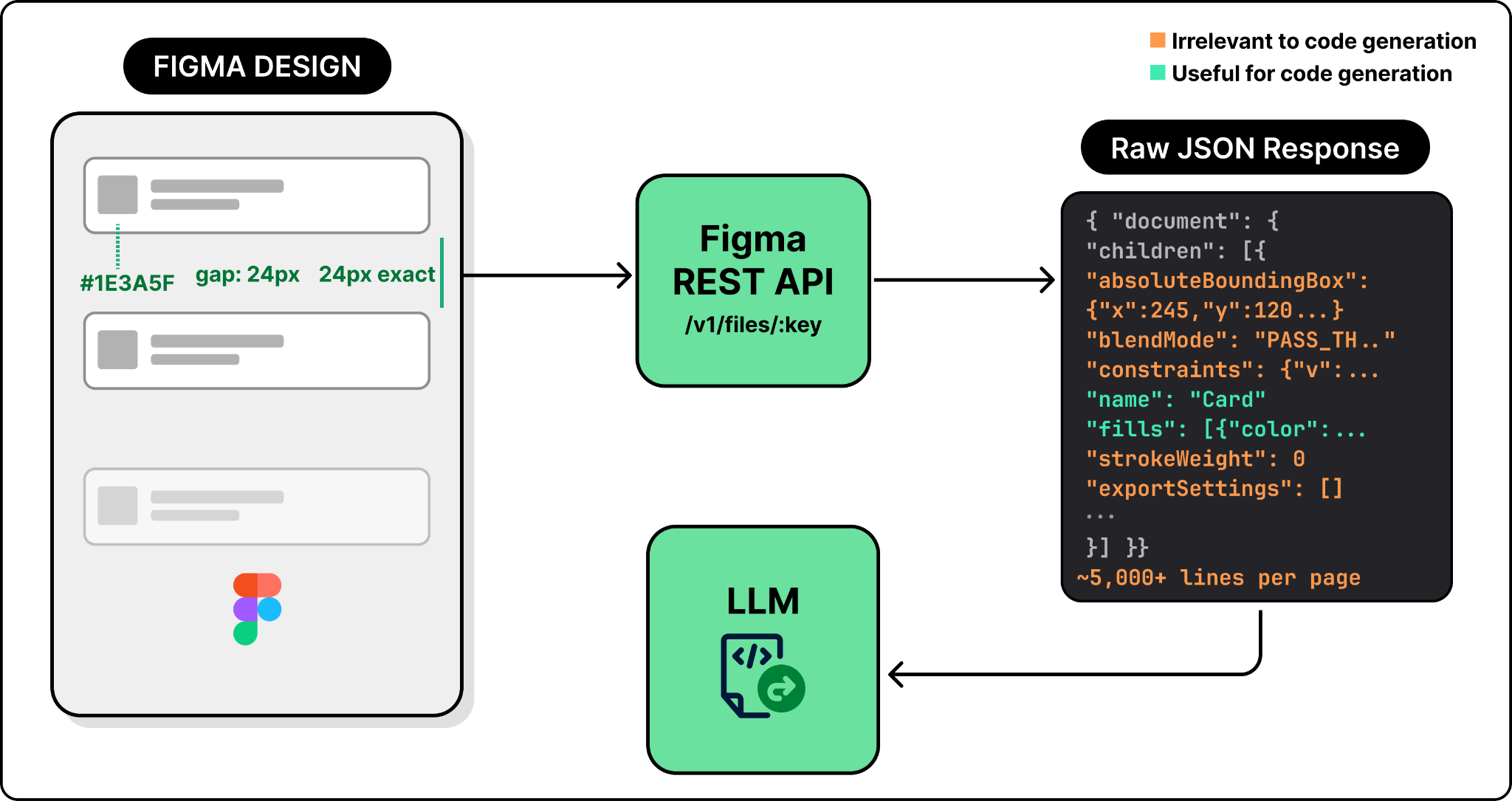
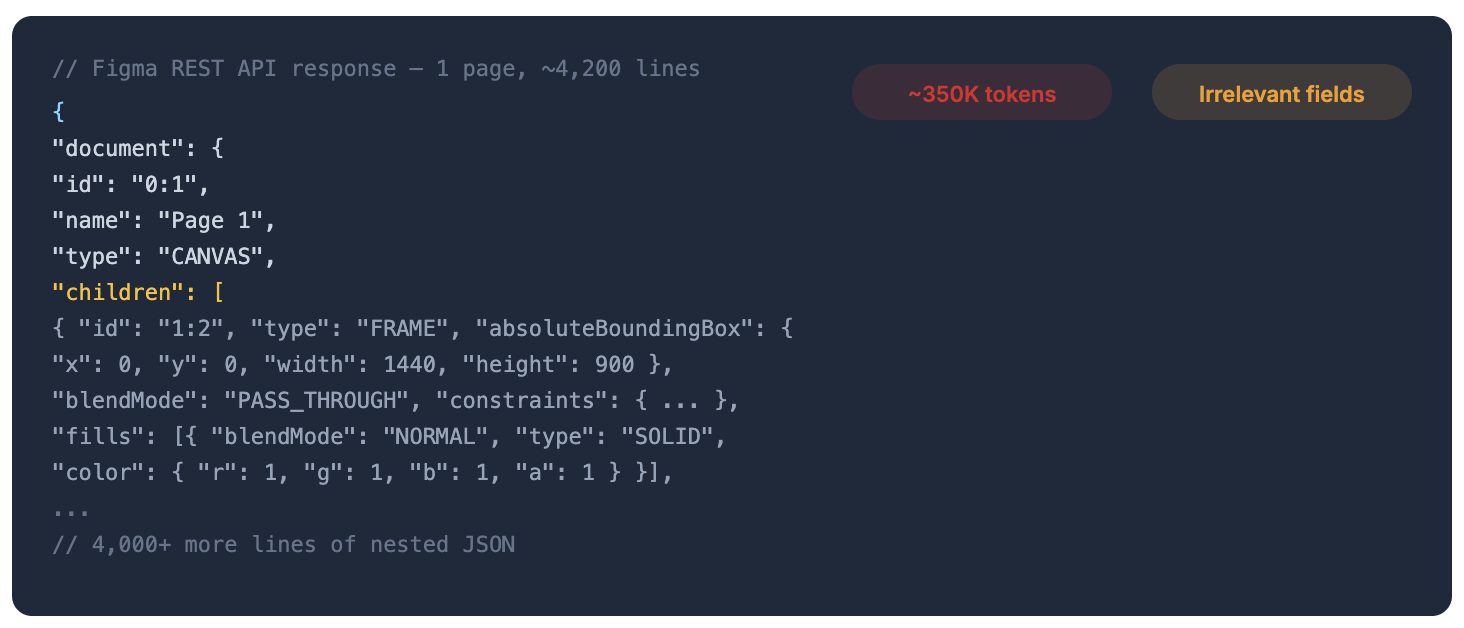
But having all the data introduces its own problem: there is far too much of it. A single Figma page can produce thousands of lines of JSON, filled with pixel coordinates, visual effects, internal layout rules, and other metadata that are not useful for code generation. Dumping all of this into a prompt can exceed the context window. Even when it fits, the LLM has to wade through pixel coordinates, blend modes, export settings, and other visual metadata that have nothing to do with building a UI, which degrades the output quality.
Neither approach works on its own. Screenshots lack precision. Raw API data has precision but drowns the LLM in noise. What you actually need is something in between: structured design data that preserves exact values like colors, spacing, and component names, but strips out the noise that is not needed for code generation.
The middle ground: Figma’s MCP server
That is what Figma’s MCP server does. MCP stands for Model Context Protocol, a standard that defines how AI agents discover and call external tools. Figma’s MCP server takes the raw design data from Figma’s REST API, filters out the noise, and transforms what remains into a clean, structured representation. Pixel positions become layout relationships like “centered inside its parent.” Raw hex colors become design token references. Deeply nested layers get flattened to match what a developer would actually build. The result is a compact, token-efficient context that an LLM can act on directly.
With that context, let’s look at how the two main workflows, design to code and code to design, actually work under the hood.
Design to Code
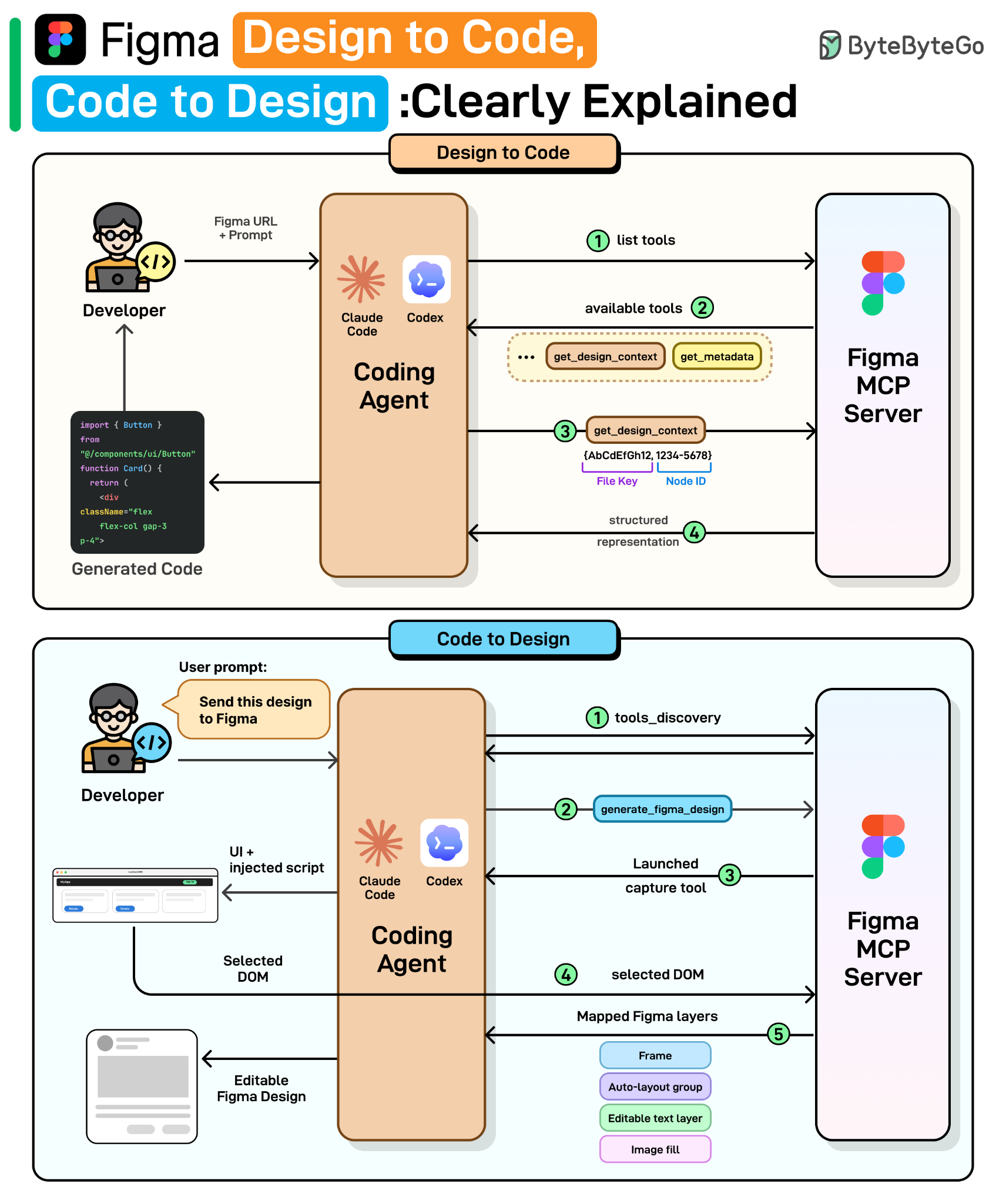
The design-to-code workflow starts when a developer selects a frame in Figma, copies its URL, and pastes it into a coding agent like Claude Code or Codex with a prompt like “Implement this design.” The agent then produces working code that matches the design. Here is what happens behind the scenes.
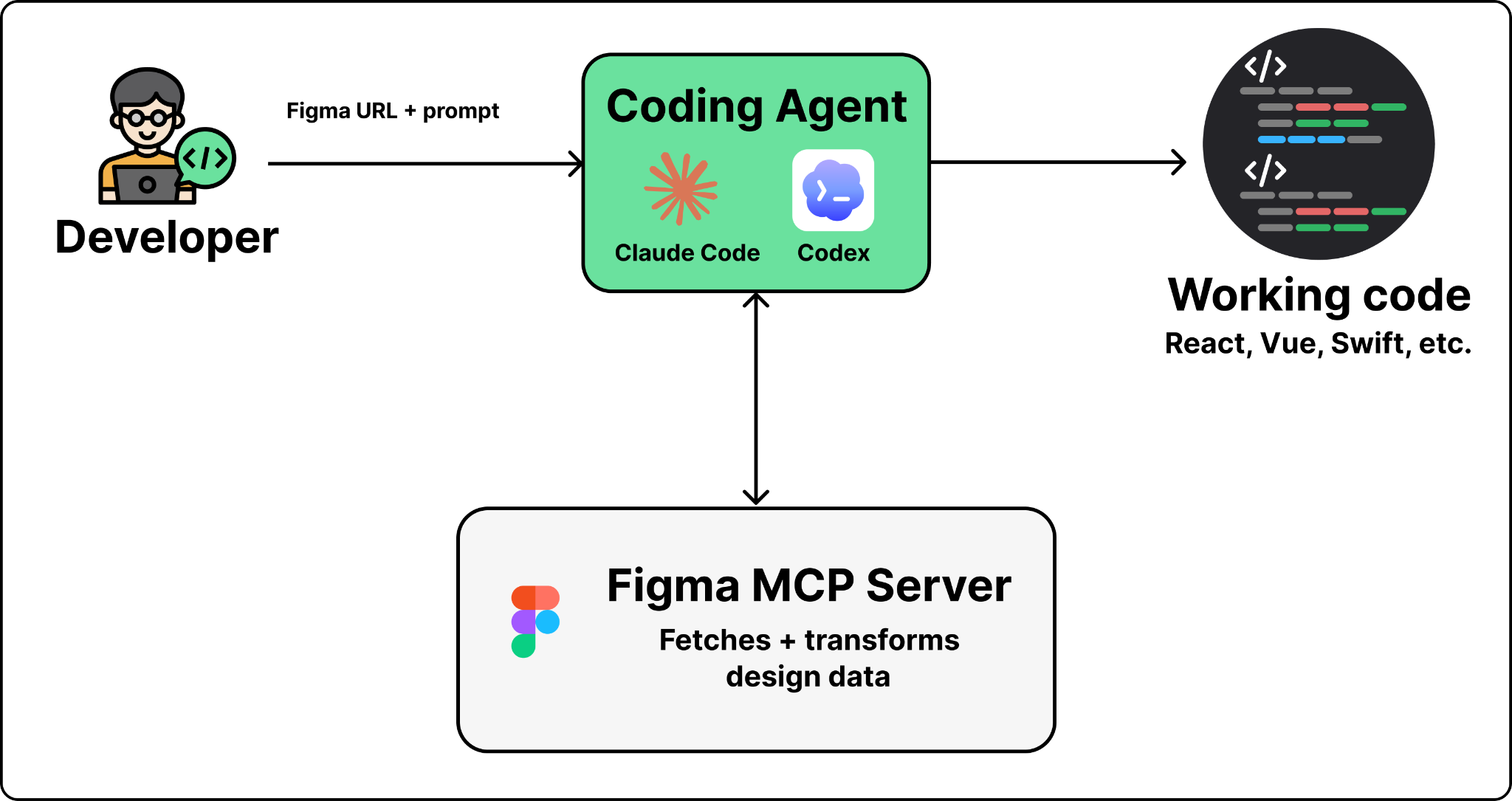
The coding agent and Figma’s MCP server work together through four steps. The first two are generic MCP mechanics: tool discovery and tool calling. The last two are where Figma’s engineering makes the difference.
Step 1. The agent discovers available tools
When you first connect the Figma MCP server, the agent receives a list of available tools. These include get_design_context, get_screenshot, get_metadata, and more. Each tool comes with a name, description, and parameter schema.
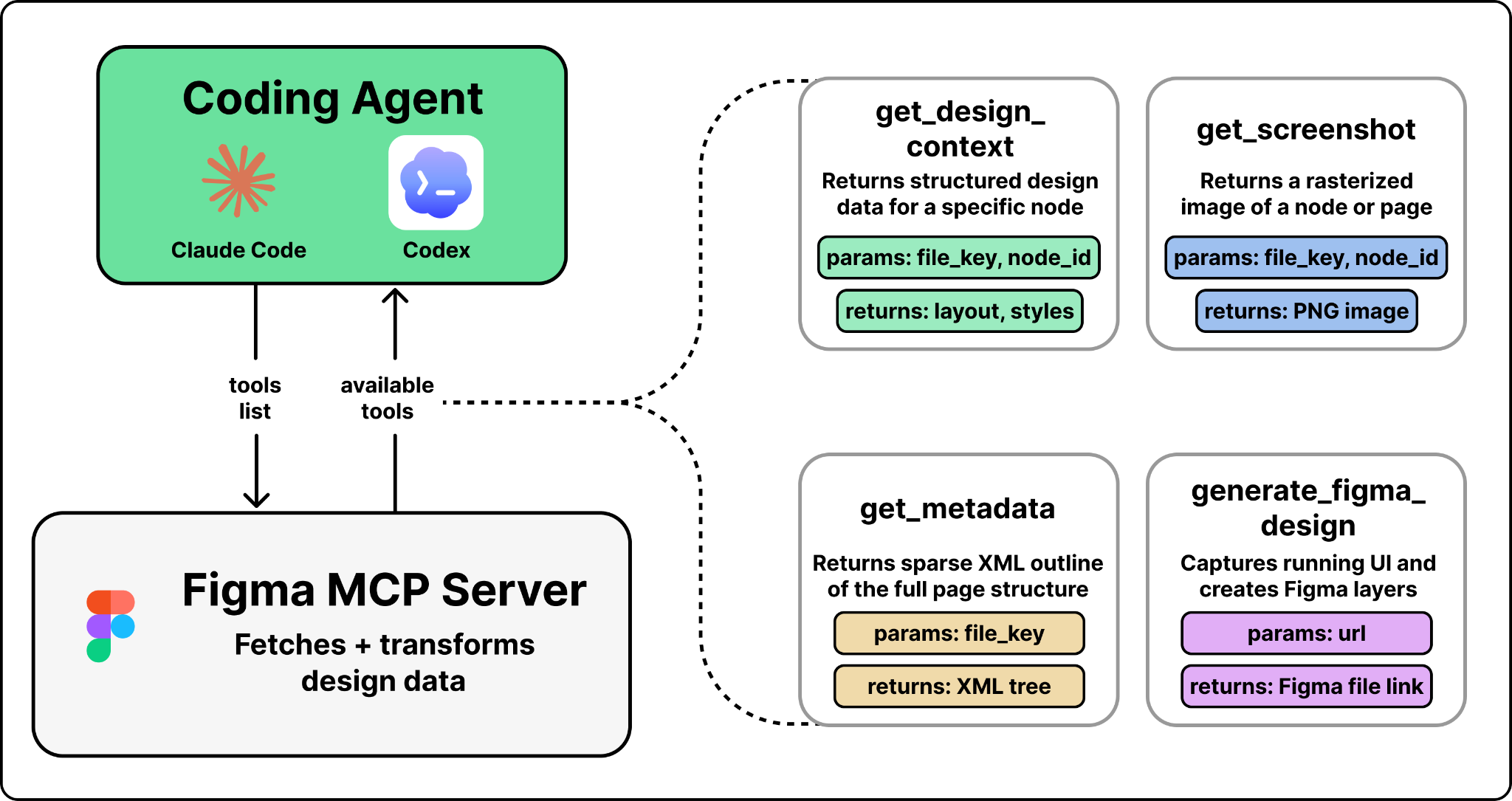
The agent does not know how Figma works internally. It reads these descriptions the same way a developer reads API documentation, then decides which tool to call based on the user’s prompt.
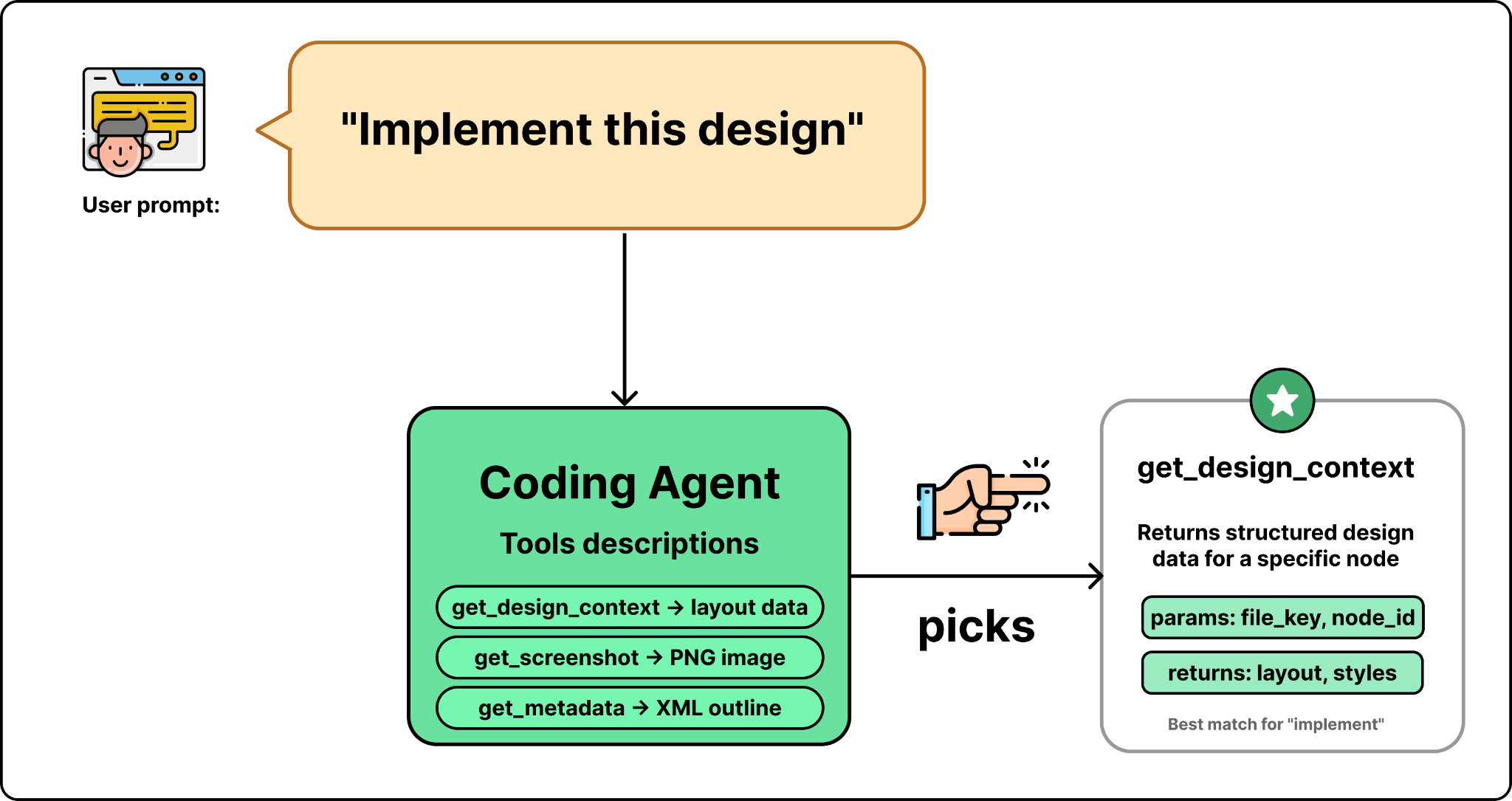
Step 2. The agent prepares the arguments and calls the tool
The agent prepares the arguments to call the selected tool. In this case, since the selected tool is get_design_context, it needs a file key and a node ID. So it parses both from the Figma URL you pasted and calls the tool.
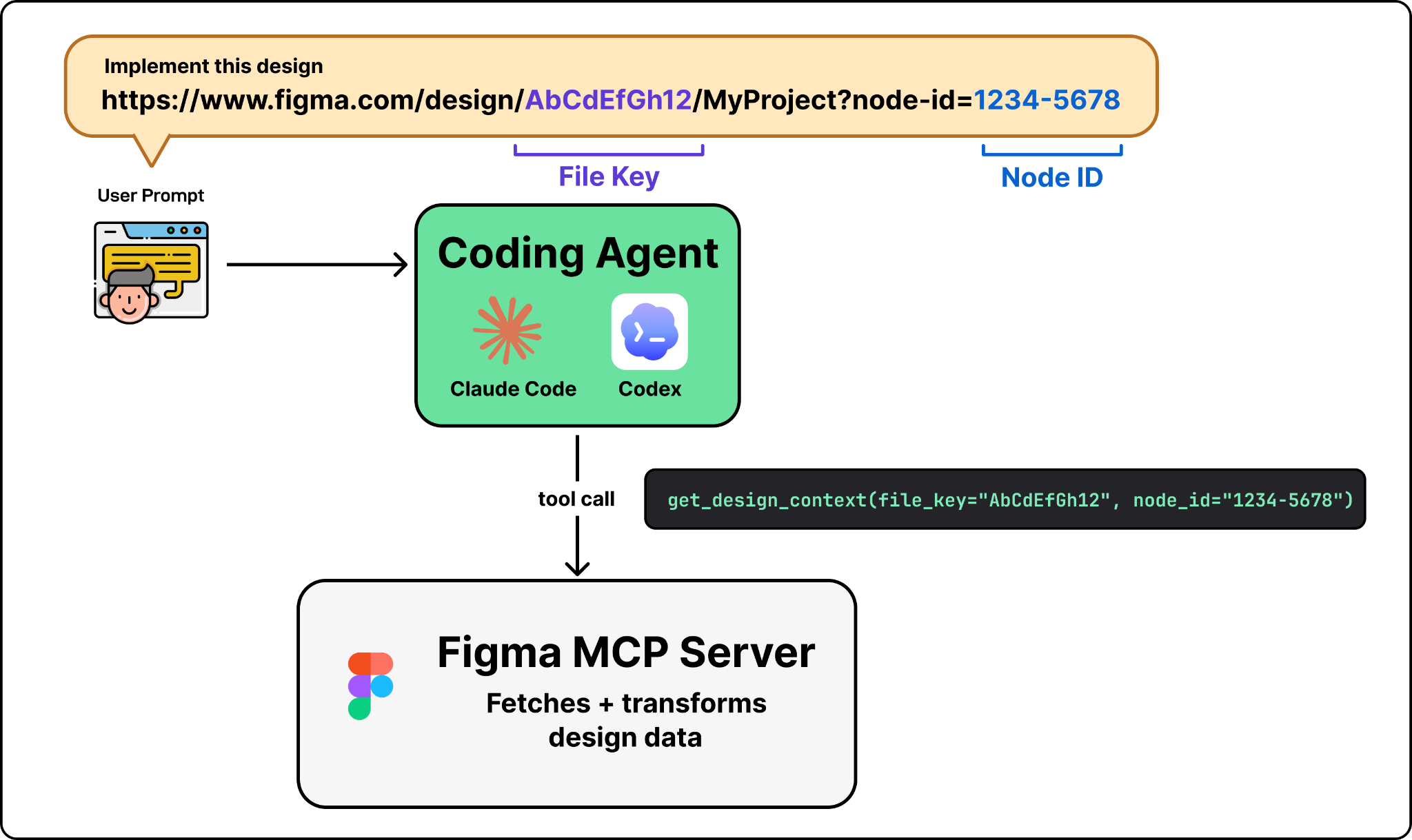
Step 3. The request hits Figma’s backend
The tool call is sent over the network to Figma’s MCP server at mcp.figma.com/mcp over Streamable HTTP. The MCP server handles authentication, then calls Figma’s internal services to read the design data such as node trees, component properties, styles, and variable definitions.
Step 4. Transform raw design data into LLM-friendly context
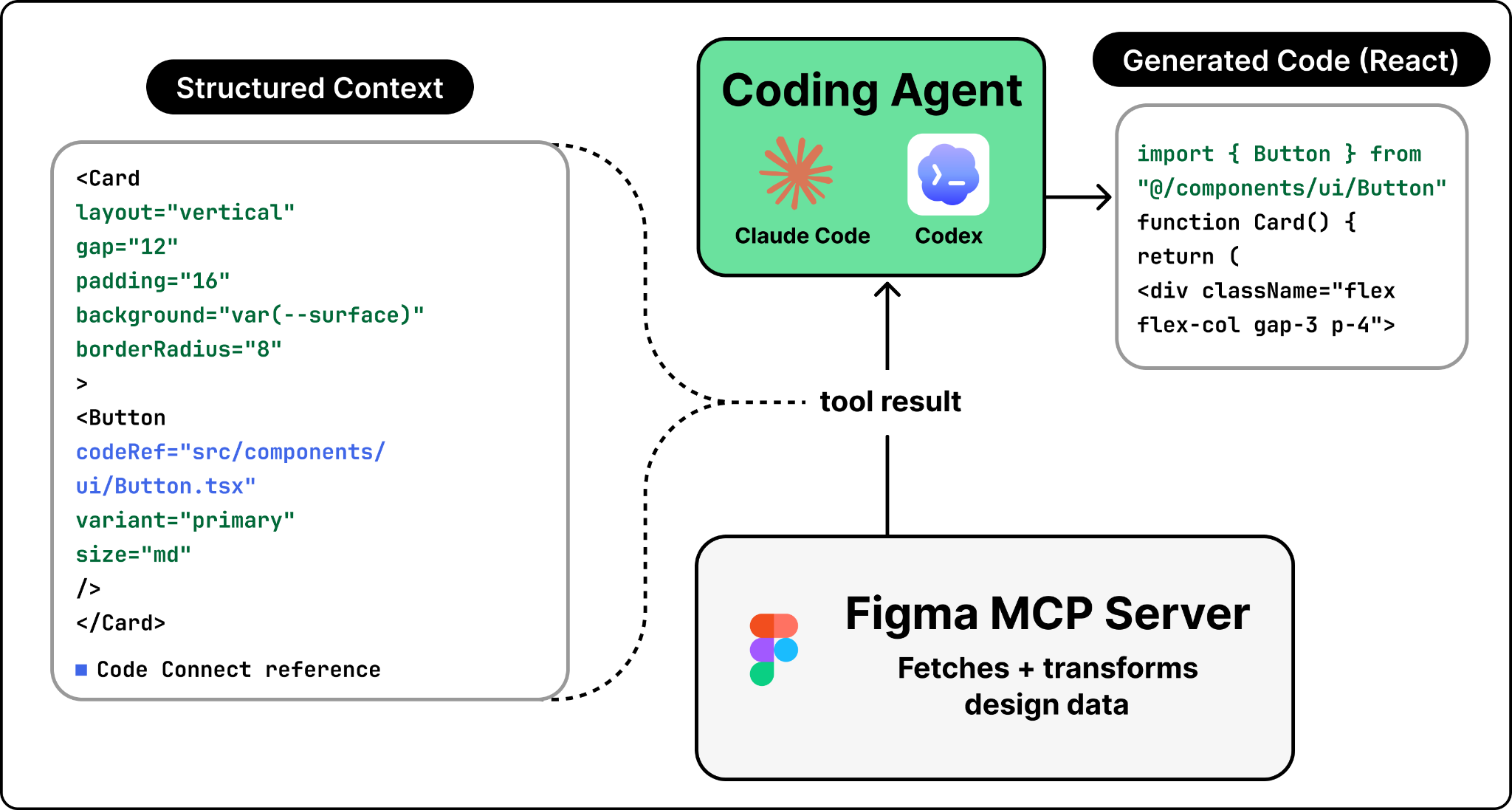
This is where the most important engineering happens. The MCP server transforms the raw JSON from Figma’s REST API into a structured representation that maps to how a developer thinks about building a UI. Pixel positions become layout relationships like “this element is centered inside its parent.” Color values become references to design tokens like brand-blue instead of raw color codes. Deeply nested layers get simplified to reflect what the user actually sees. And components get enriched with code mappings. For example, when a Figma button component is mapped to src/components/ui/Button.tsx through Code Connect, that reference appears in the output. The LLM reuses the existing component instead of recreating it from scratch.
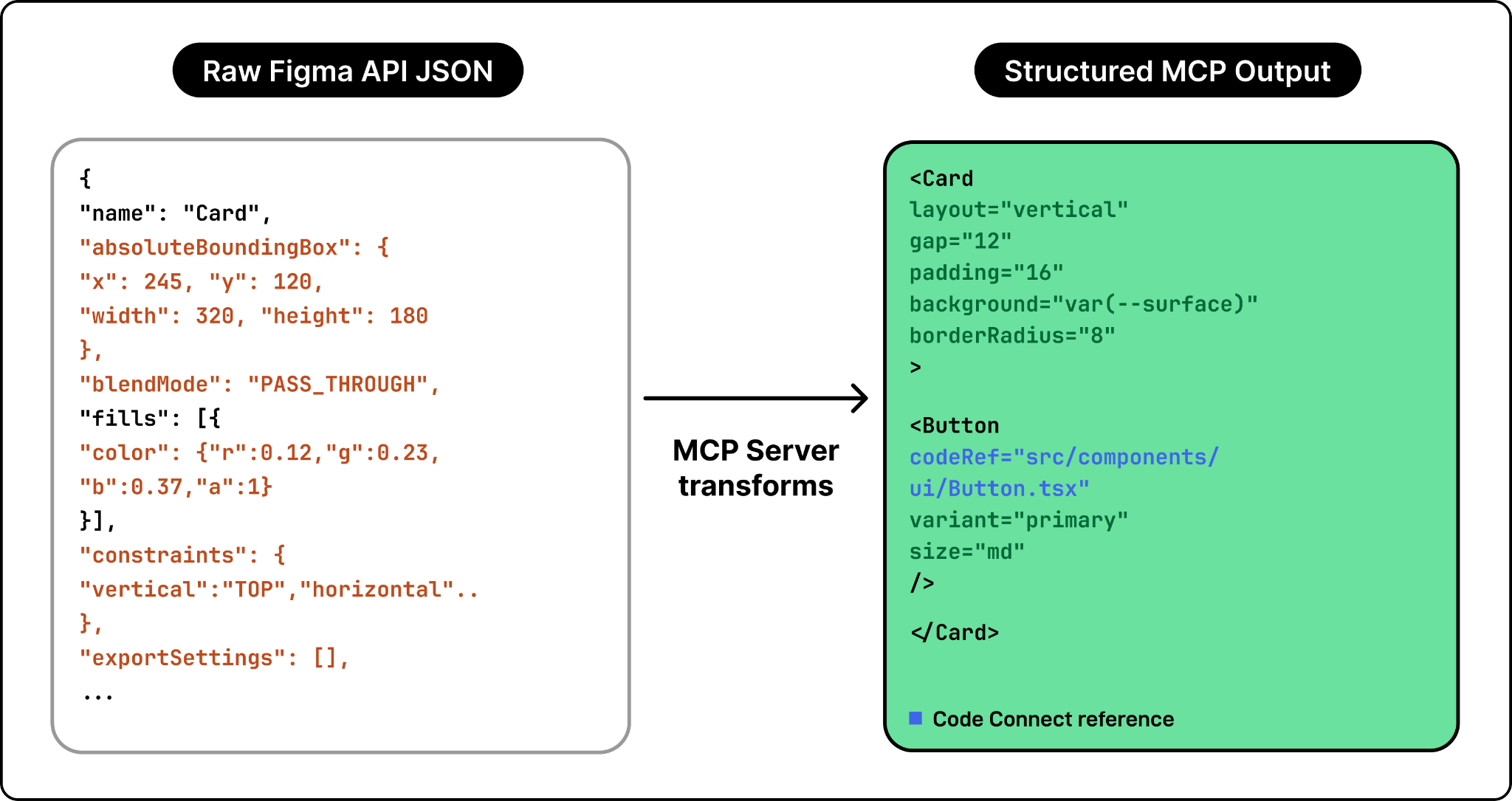
The output defaults to a React + Tailwind framing because that is the most common frontend stack. But it is a structured representation of the design, not generated code. The LLM takes this representation and generates actual code in whatever framework the developer specifies.
Code to Design
Design to code is only half the story. In practice, the code often evolves faster than the design files. A developer ships a feature, tweaks the layout based on user feedback, adds a new section, and now the Figma file no longer matches what is actually running in production. Code to design closes that gap. A developer opens Claude Code, types “send this to Figma,” and a few seconds later the live UI appears in Figma as fully editable layers. Not a flat screenshot, but real frames with auto-layout, editable text, and separate components.
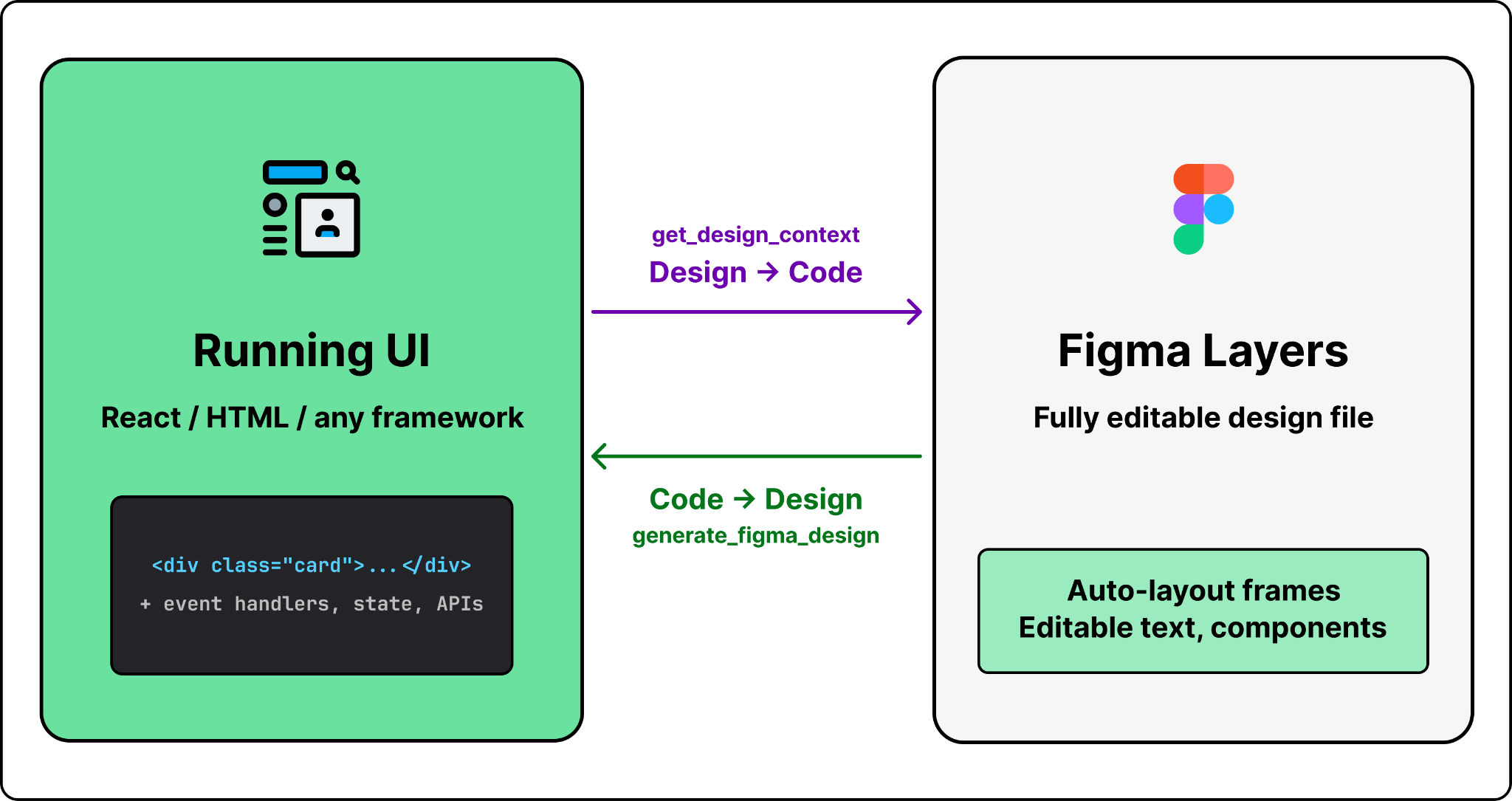
This is powered by one key tool in the MCP server: generate_figma_design. Here is what happens under the hood.
Step 1: The Figma tool launches the capture tool
When the developer prompts “send this to Figma,” the agent calls MCP server’s generate_figma_design tool.
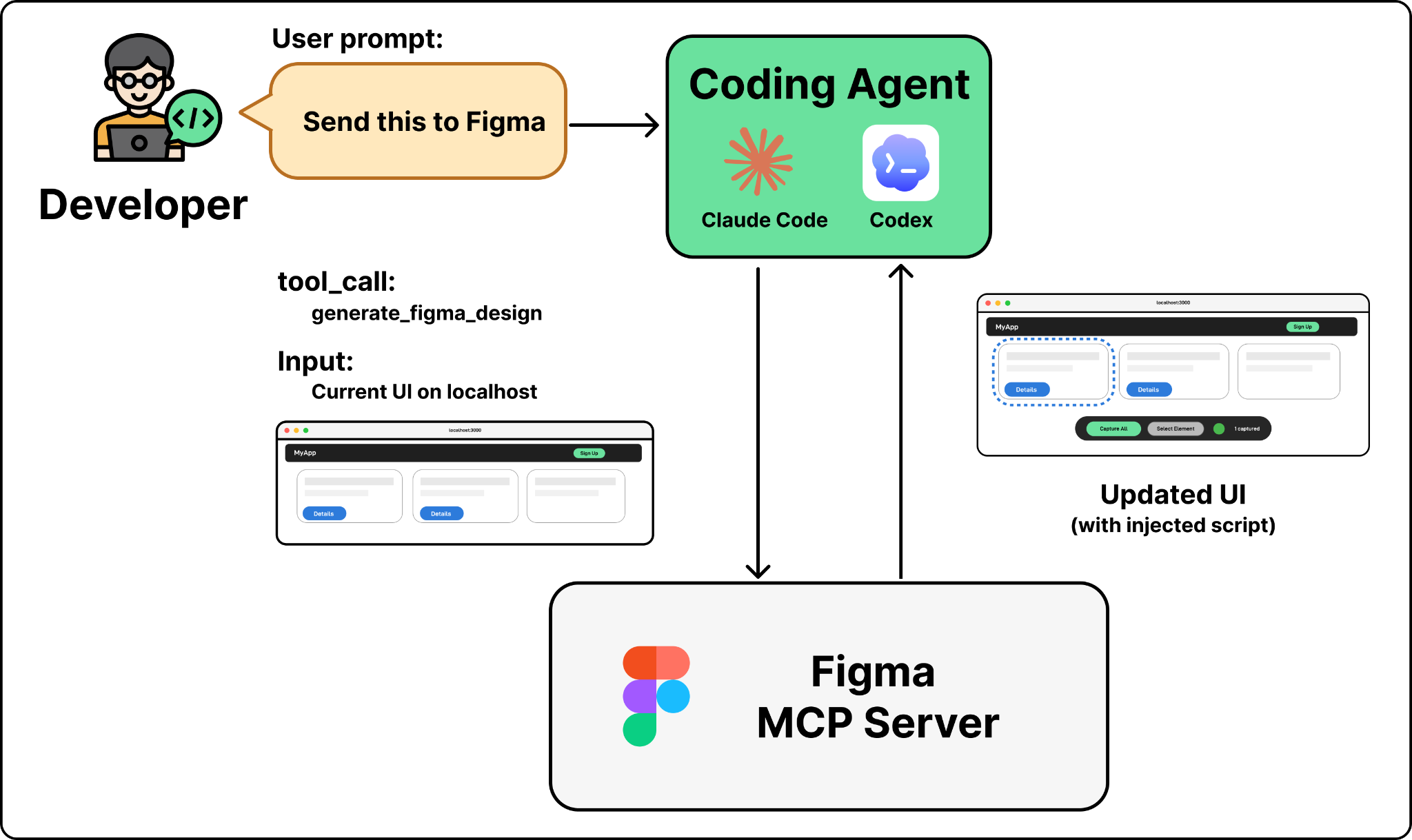
The tool opens the target URL in a browser and injects a JavaScript capture script. For a local dev server, it connects directly. For production or staging URLs, it uses a browser automation tool like Playwright to open the page and inject the script programmatically.
When the browser window opens, two things appear: the running UI and a capture toolbar overlay. An initial capture happens automatically when the page loads. From there, the developer can capture the entire screen or select specific elements.
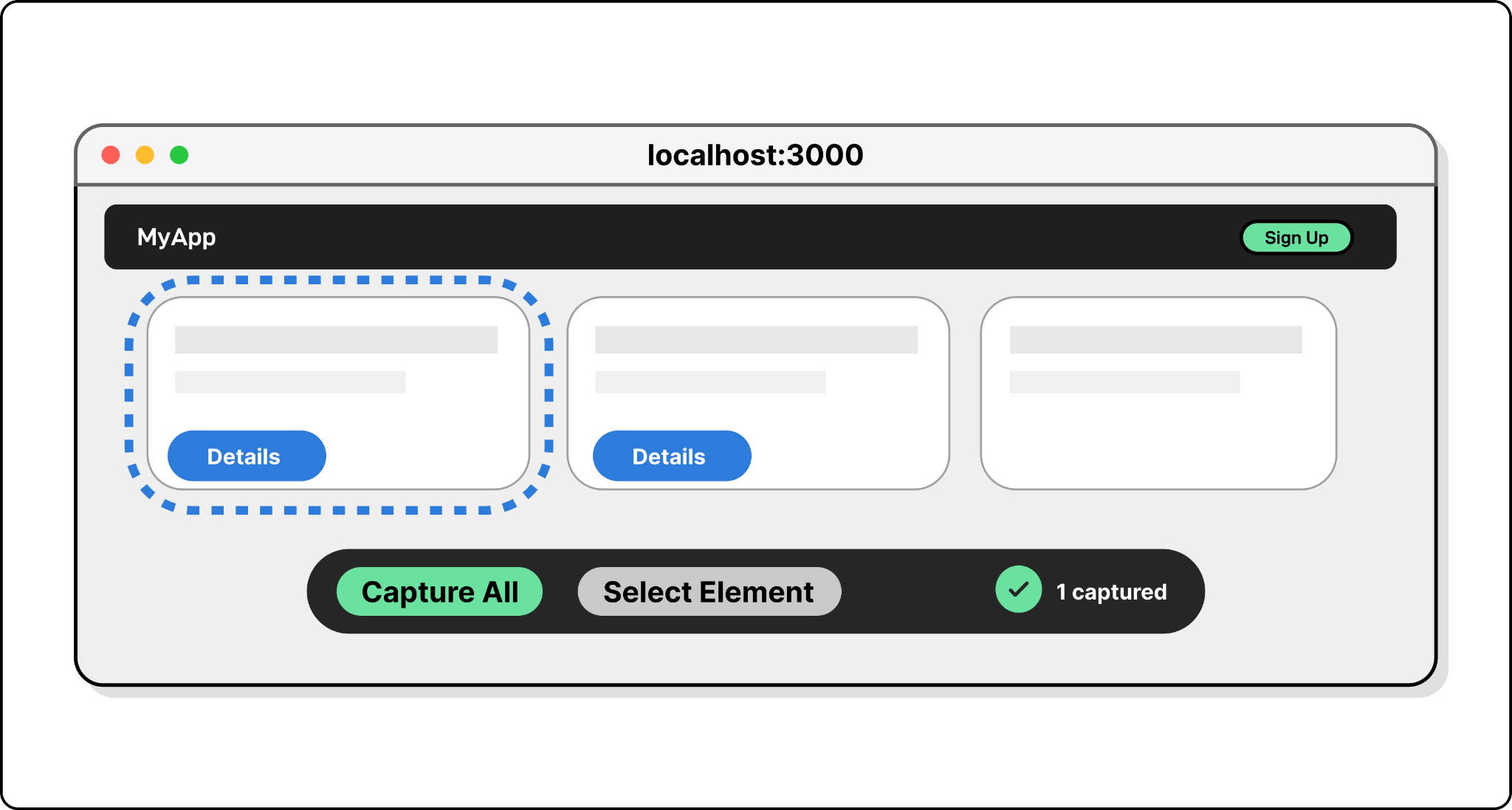
Step 2: The script reads the DOM
When the user selects the desired UI from the live capture, the injected script does not take a screenshot. It reads the live DOM.
It walks the DOM tree and extracts computed styles, layout properties, text content, and image sources for every visible element. It also preserves the parent-child hierarchy. A flex container with three children stays structured as a container with three children, not a flat collection of boxes.
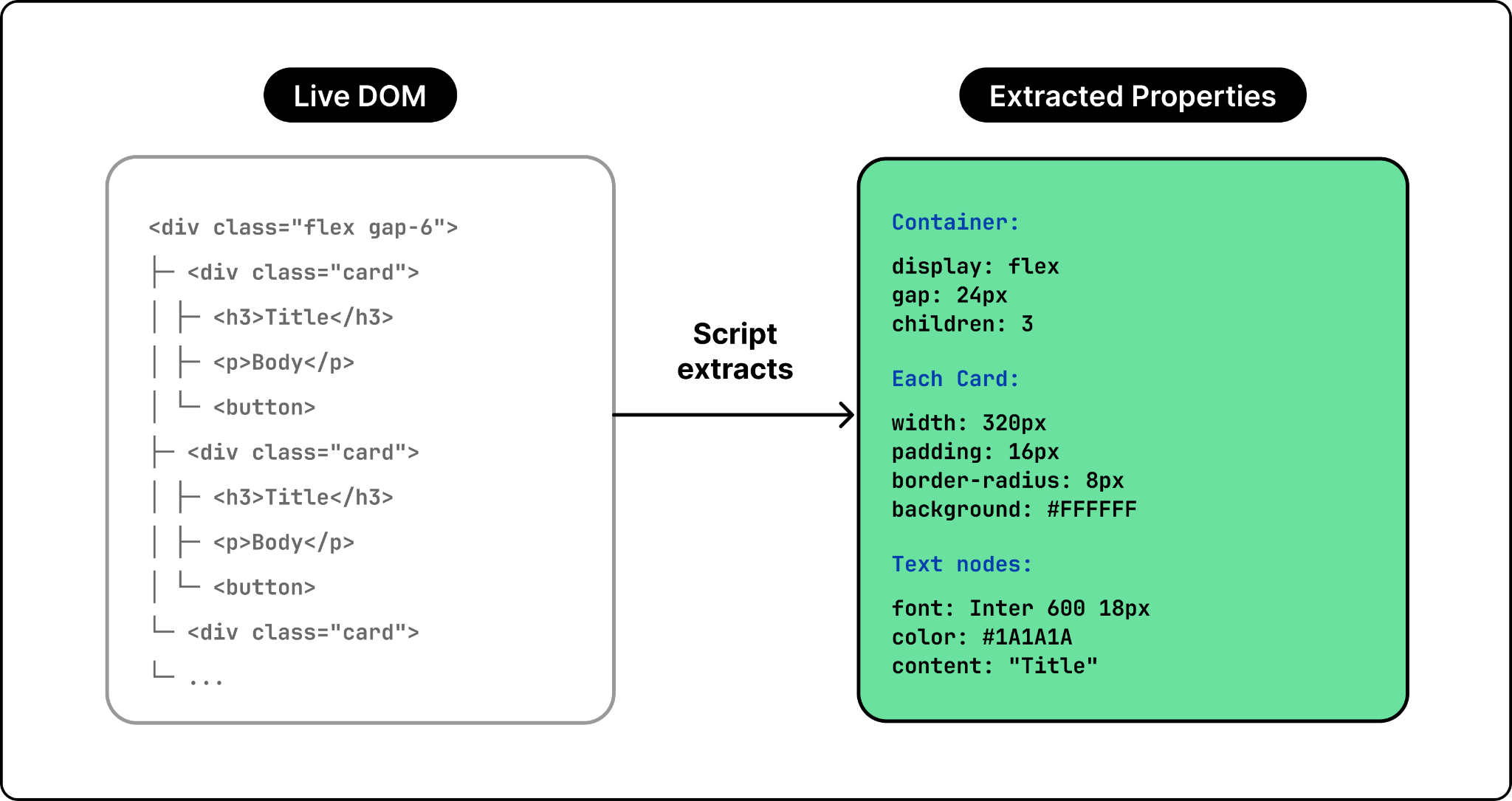
This is what makes the output editable in Figma. A screenshot captures pixels. The DOM walk captures structure and relationships between elements.
Step 3: DOM data becomes Figma layers
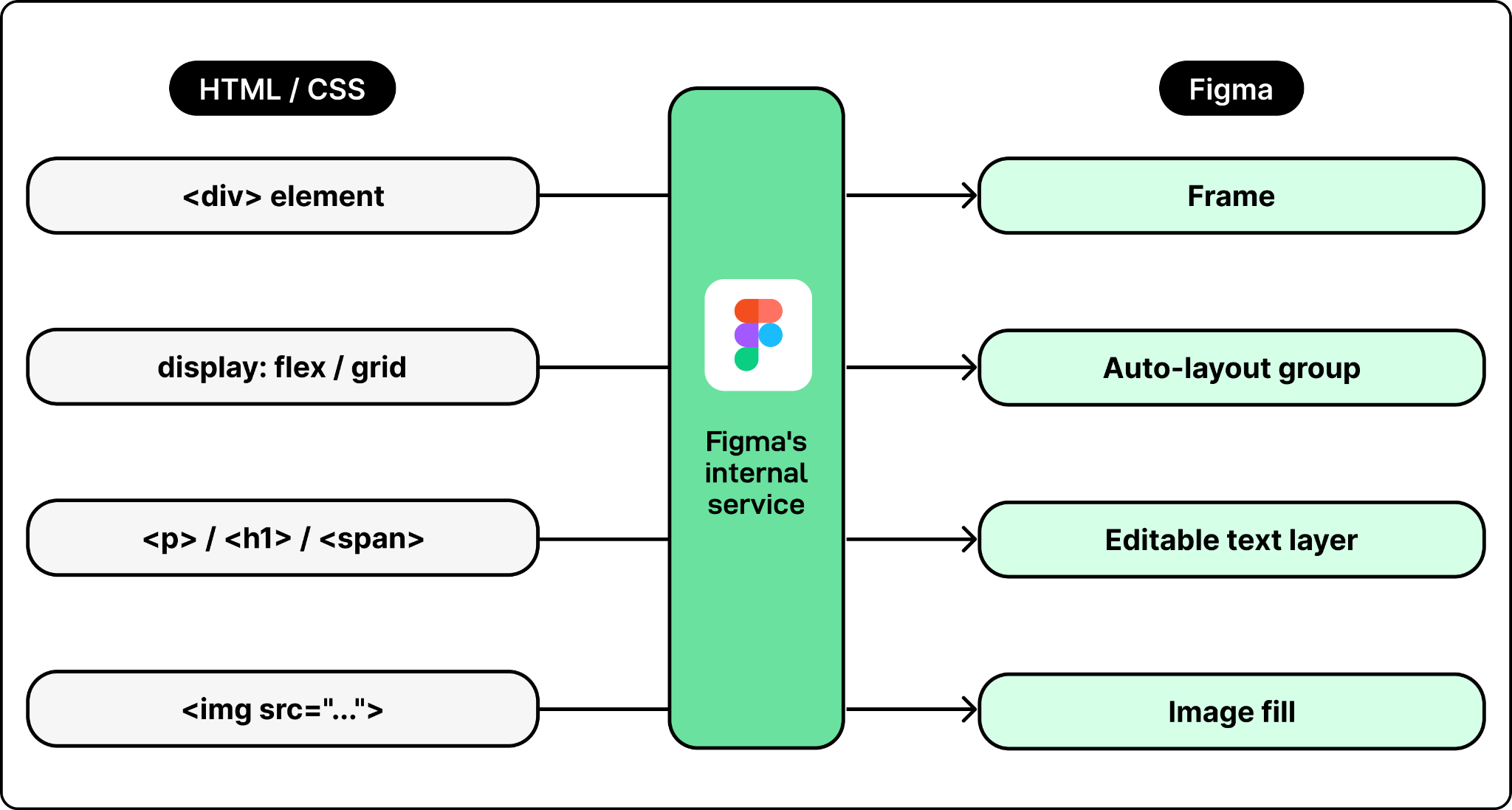
The captured DOM data gets sent to Figma’s backend, where it is reconstructed as native Figma design layers. Each HTML element maps to a Figma frame or shape. CSS flexbox and grid layouts become Figma auto-layout groups. Text nodes become editable Figma text layers with the correct font, size, weight, and color. Images get extracted and embedded as image fills.
That covers the two core workflows. But making them work reliably in production, across millions of Figma files, multiple coding agents, and real design systems, introduces a different set of problems.
Engineering Challenges
Here are some of the most important challenges Figma’s team faced, and how they addressed them.
Challenge 1: Context window limits
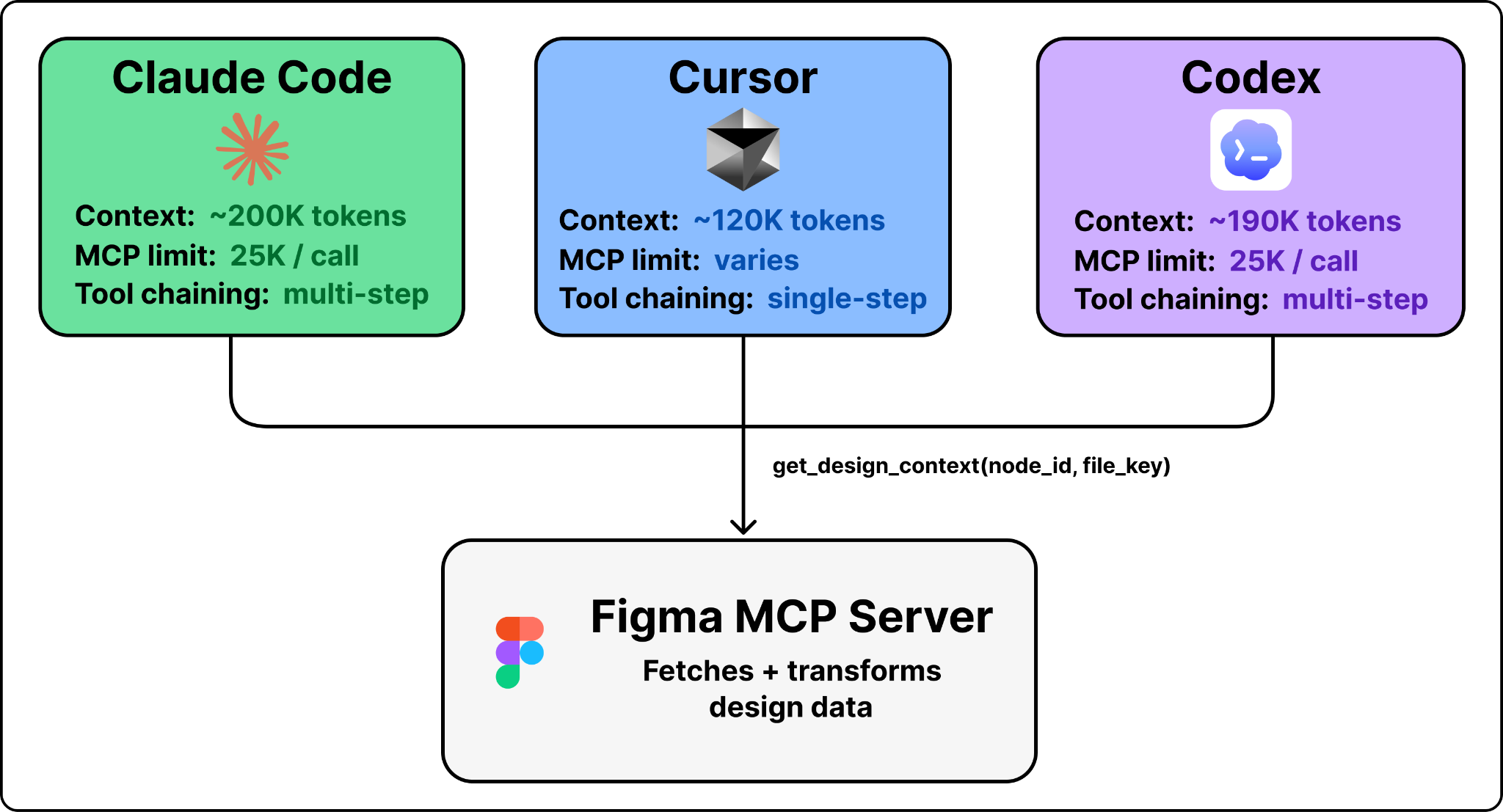
LLMs have fixed context windows, so token count is a hard constraint. The design data for a complex Figma page can be enormous, far more than what a coding agent can handle in a single call. Claude Code, for example, defaults to a 25,000-token limit for MCP tool responses. If you call get_design_context on an entire page instead of a specific node, the response can easily exceed that limit and get truncated. This challenge is not unique to Figma. Any MCP server that exposes large structured data like a codebase, a document store, or a design file, has to solve the same problem: how to give the LLM enough context to be useful without exceeding what it can process.
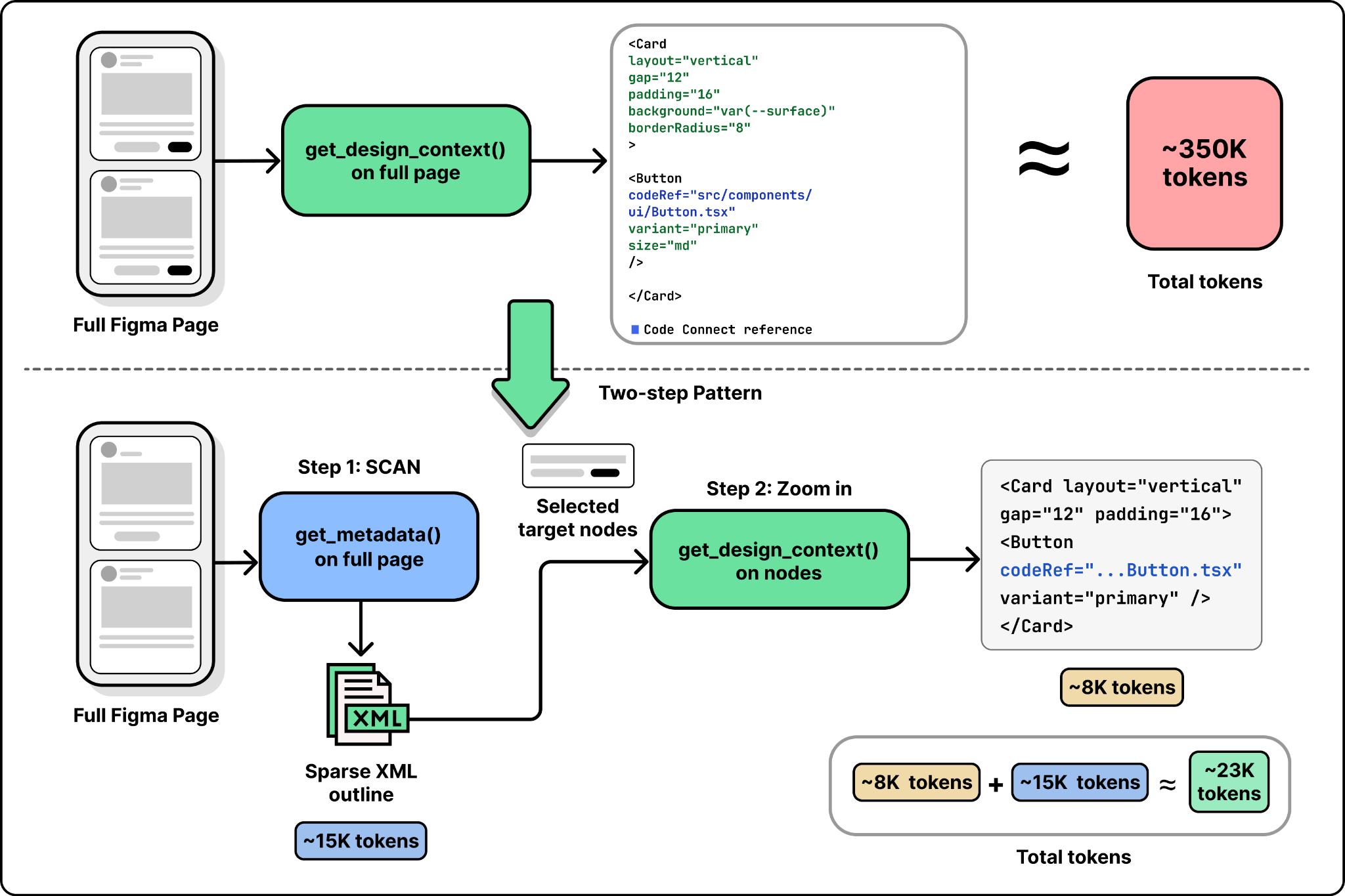
To mitigate this, Figma developed the get_metadata tool. Instead of the full styled representation, it returns a sparse XML outline. A developer can call get_metadata on an entire page to see the structure, identify the specific nodes they need, and then call get_design_context only on those nodes. It is a two-step pattern: scan first, then zoom in.
Challenge 2: Component mapping
By default, the coding agent has no way to know which Figma components map to which code components. Without that mapping, the agent will spend time searching the codebase to find the right component. If it does not find a match, it will create a new one from scratch. Multiply that across every reusable component in a design system, and the generated code diverges from the codebase fast.
Figma mitigates this with Code Connect, which lets teams create explicit mappings between Figma node IDs and code file paths. Once set up, the MCP server includes these mappings in its response, and the agent reuses the actual component instead of guessing.
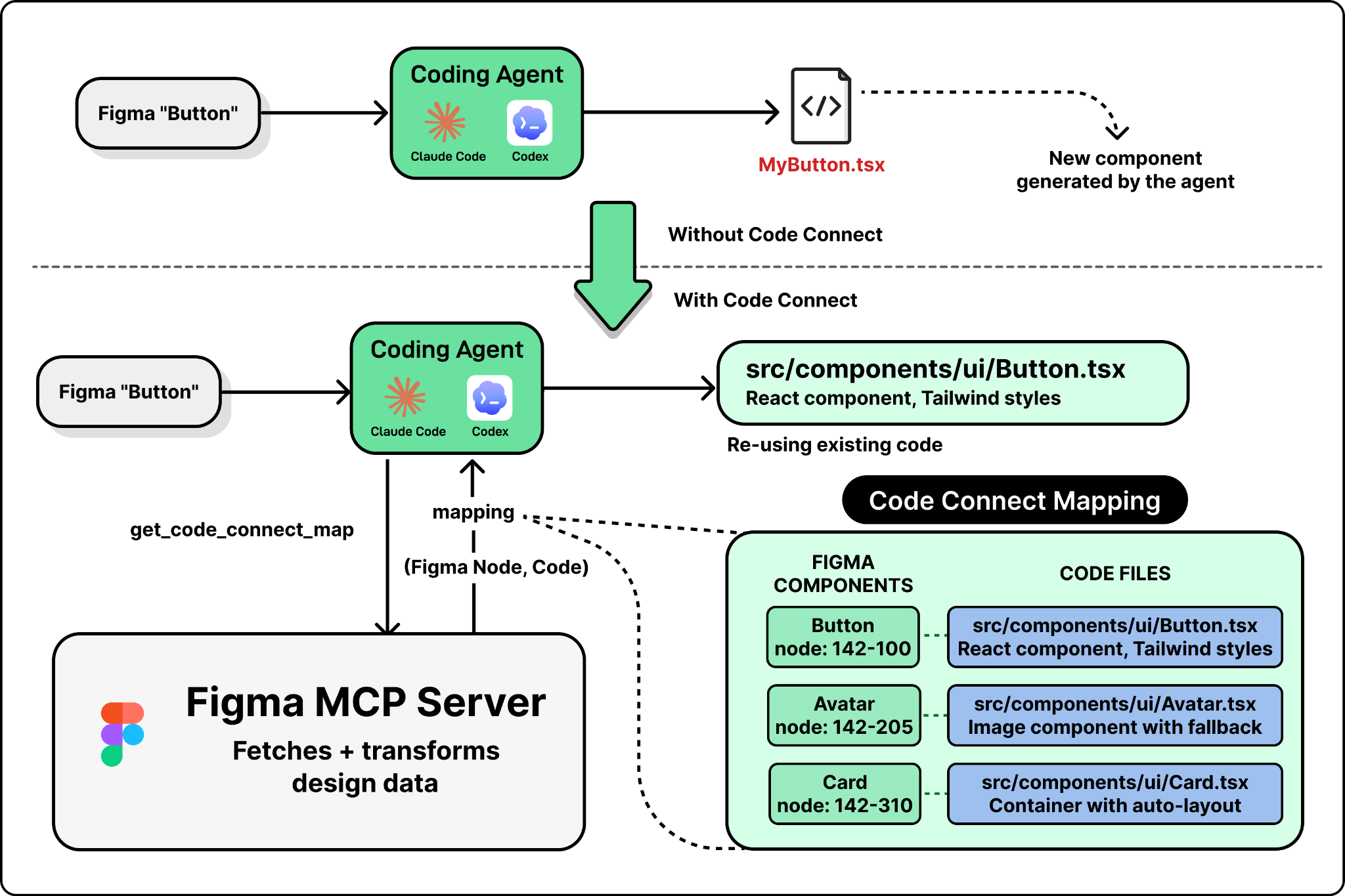
Setting up Code Connect requires manual effort. Someone has to create and maintain those mappings. Figma has been working to reduce this friction with tools like get_code_connect_suggestions, which automatically detects and proposes mappings. But the quality of the generated code is still directly tied to how much the team has invested in connecting their design system to their codebase.
Challenge 3: The lossy roundtrip
The bidirectional loop sounds seamless, but each handoff loses information. When a design goes from Figma to code, the structured context captures layout, styles, and component references, but not business logic, event handlers, state management, or API calls. The agent fills those in when generating code.
When that code gets captured back to Figma through generate_figma_design, the DOM walk captures visual structure and styles but strips out everything that is not visible: the React state, the API integration, the route handling.
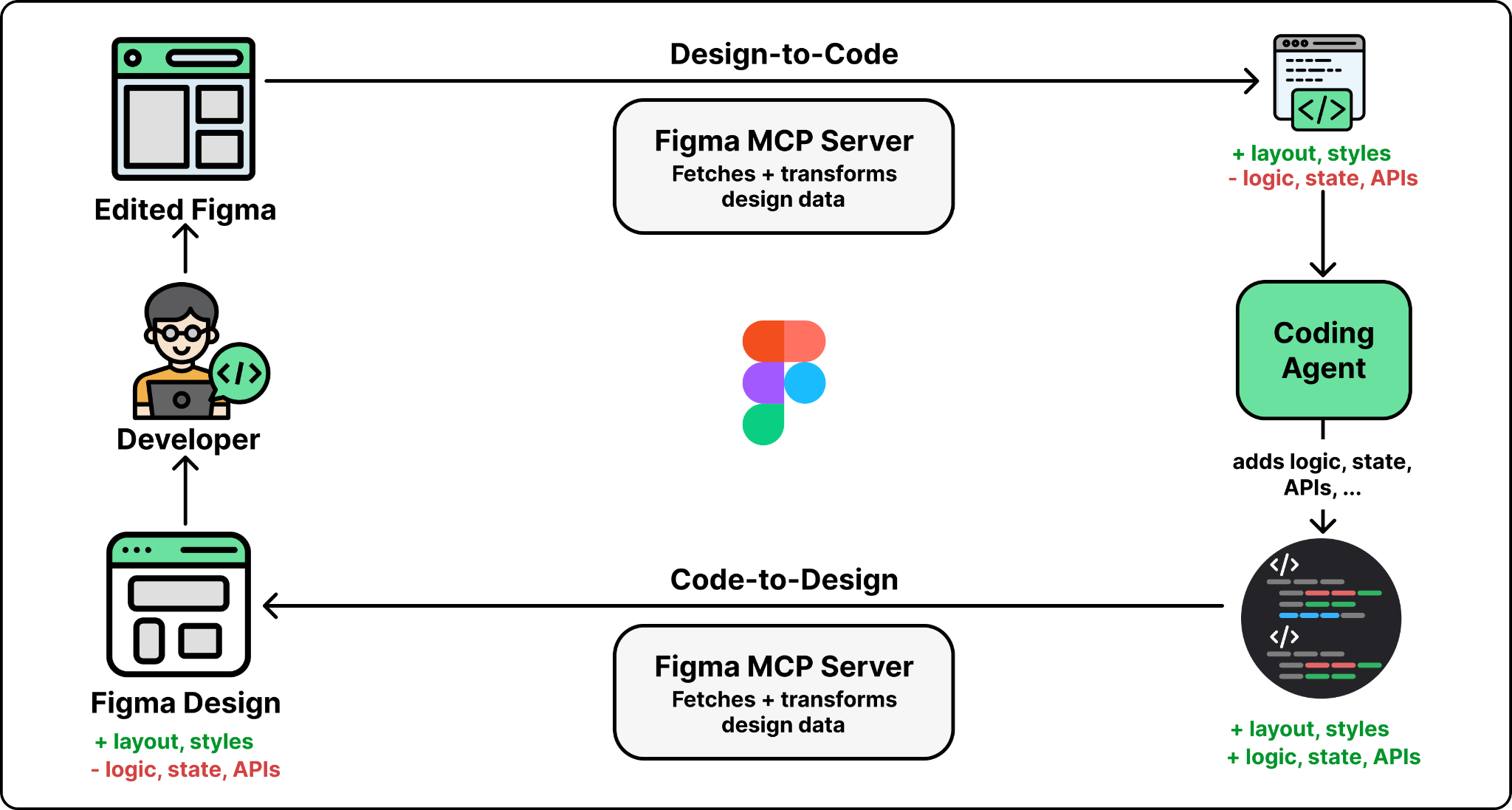
The result is that each roundtrip requires re-inference. When a designer modifies a captured UI in Figma and a developer pulls it back into code with get_design_context, the agent is translating visual decisions into implementation from scratch. It does not have access to the previous version of the code. Code Connect mappings help here by preserving the link between design components and their code implementations across roundtrips, but the non-visual logic still has to be re-added each time.
Challenge 4: Serving multiple agents with different capabilities
Figma’s MCP server does not serve a single client. It serves Claude Code, Cursor, Codex, and any other MCP-compatible tool. Each agent has different context window sizes, different tool-calling behaviors, and different levels of sophistication in how it sequences multiple tool calls. A workflow that works well in one agent may not work the same way in another.
The generate_figma_design tool, for instance, is now available in a growing number of coding tools, including Claude Code and Codex. Code-to-design requires tighter integration with the browser (script injection, capture toolbar, multi-screen state) than most agents currently support.
Building an MCP server that works well across a growing ecosystem of agents with varying capabilities is one of the harder ongoing challenges in this space.
The recent opening of the Figma canvas to agents marks an important evolution in this workflow. Agents can now not only read and understand design context, but actively modify and create designs using the use_figma MCP tool. This tool complements the design-to-code workflow by enabling agents to edit designs directly on the Figma canvas and create new assets using your components and variables.
What’s Next?
The hardest part of building an MCP server is not implementing the protocol. It is making the design decisions that Figma’s team had to work through: what context to include, what to leave out, how to structure it so LLMs can reason about it, and how to stay within token budgets. Those decisions are what separate a useful MCP server from one that just wraps an existing API.
Figma’s server is a useful reference point not because of the design tool specifics, but because the design decisions behind it like what to include, how to structure it, and how to handle token budgets, are well-documented and applicable to anyone building an MCP server for a complex domain.
The "scan first, zoom in" pattern with get_metadata → get_design_context is the most broadly applicable insight here. Anyone building an MCP over large structured data (codebases, doc stores, design files, pretty much any big project) ends up rediscovering it.
Thanks